Compilation of Emulated Entities
This section describes how an emulated entity can be compiled into a format suitable for use in the co-simulation.
We use a running example here for the binary $HOME/Titan/scripts/x86_vt_spinner/x86_vt_spinner.c
The goal is to make this code suitable for co-simulation.
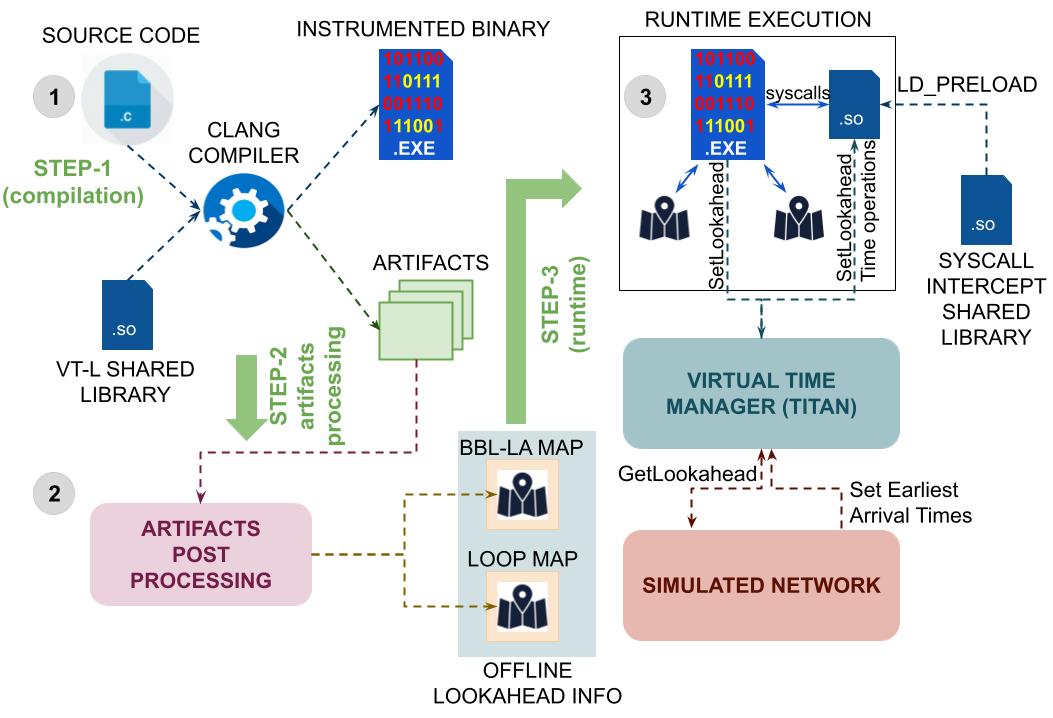
Figure 1. All steps involved in compilation and lookahead extraction.
Figure 1 outlines all the phases involved in instrumenting executables and extracting lookahead from them. A tool called ttn is provided to help with these steps. The general worklfow is described below.
Step-0: Pre-compilation
Before compilation of a piece of emulated code, a titan project needs to be created for that code. This project needs to be unique for each distinct executable that needs to be co-simulated.
Creating a titan project can be accomplished with the following command:
ttn add -p <project_name> -s <project_source_dir> [additional options]
For e.g, to associate the example binary with a titan project with the name “vt_test”, the following command needs to be used:
ttn add -p vt_test -s ${HOME}/Titan/scripts/x86_vt_spinnerAdditional options may be used to configure the project at the time of creation. For e.g, to configure the project “vt_test” to use the “Skylake” target micro-architecture and a 2.7 GHz target processor, the following command needs to be used:
ttn add -p vt_test -s ${HOME}/Titan/scripts/x86_vt_spinner -a Skylake --cpu_mhz 2700To see the list of supported options, use the command:
ttn help
To view the list of supported target micro-architectures, use the command:
vtins -l
To check the ttn project parameters, use the following command:
ttn show -p vt_test
To listing all created projects, use the following command:
ttn list
Activating created project. The next pre-compilation step is activating the project:
ttn activate -p vt_test
Ensure that the desired project is active before compiling its source files.
Step-1 Compiling a project source
Go to the project source directory. In this example:
cd ~/Titan/scripts/x86_vt_spinner
Compile using clang with two additional flags -O1 and -lvtllogic
clang -O1 -lvtllogic x86_vt_spinner.c -o x86_vt_spinner
This step automatically figures out the current active project (in this case it is vt_test) and reads its parameters. The generated binary is instrumented according to the passed project configuration.
Step-2 Extracting lookahead from a compiled project
To extract and store lookahead information, first ensure that DISABLE_LOOKAHEAD build flag in ~/Titan/CONFIG is set to no.
Assuming the previous two steps have been completed, to extract lookahead use the following command:
ttn extract -p <project_name>
In this example:
ttn extract -p vt_test
Step-3 Running the instrumented executable
To run the instrumented application as a part of a co-simulated model, some additional steps need to be performed. Instructions for launching co-simulations are described in detail here.
Updating a ttn project
To update a project, simply add it again:
ttn add -p <project_name> -s <project_src_dir> [additional options]
Deleting a ttn project
Use the following commands to deactivate and delete ttn projects:
ttn deactivate -p <project_name>
ttn delete -p <project_name>